
Download 7Burn – Free CD & DVD Burning Tool for Windows
Overview
7Burn is a lightweight, free software utility designed specifically for Windows users who need a reliable solution for burning CDs and DVDs. First released in 2012, the program has evolved into a trusted tool for both casual home users and small‑office environments. The current version, 7Burn 2.0, was last updated on June 20 2012 and remains fully compatible with Windows Vista, Windows 7 and earlier releases. What sets 7Burn apart from many commercial burners is its minimal footprint – it occupies far less disk space than most utilities in the CD & DVD burning category, making it an ideal choice for computers with limited storage capacity.
Despite being over a decade old, 7Burn continues to attract a dedicated user base in regions such as South Africa, India, and Ireland. Since its addition to our catalog in 2012, the software has accumulated more than 4,700 downloads, with a steady trickle of new users each week. The interface is available in both English and Portuguese (Brazil), ensuring that non‑English speakers can also benefit from its straightforward functionality. As a free utility, 7Burn does not require any license keys, hidden fees, or intrusive advertisements, delivering a secure and hassle‑free burning experience.
In the following sections we’ll dive deeper into the core features, walk through the installation process, discuss system compatibility, and present an honest assessment of the pros and cons. By the end of this review, you’ll know exactly why 7Burn might be the perfect addition to your Windows toolbox for CD and DVD creation.
Key Features and Functionalities
- Simple Drag‑and‑Drop Interface: Users can add files or folders directly onto the main window, eliminating the need for complex navigation.
- Multiple Disc Formats Supported: 7Burn handles CD‑R, CD‑RW, DVD‑R, DVD‑R DL, and DVD‑RW, covering the most common media types.
- Burn Speed Control: Adjustable burn speeds allow users to prioritize speed or reliability depending on the disc quality.
- Data Verification: After burning, the software automatically verifies the integrity of the written data, reducing the risk of corrupted discs.
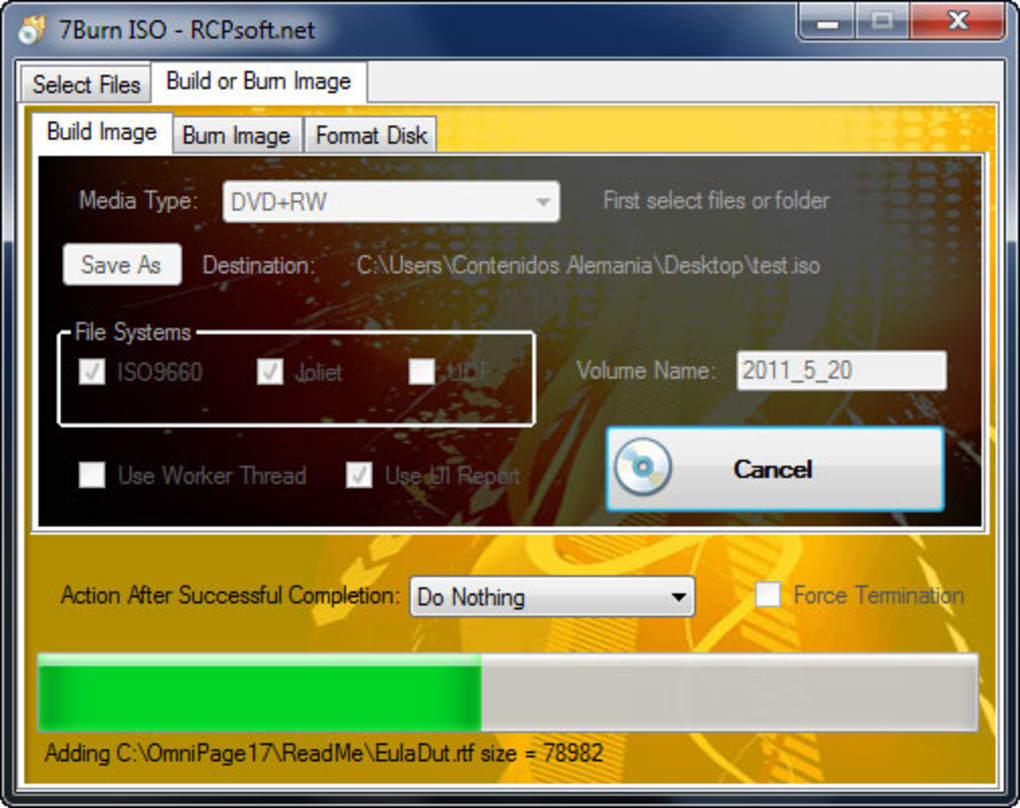
- ISO Image Creation & Burning: Users can create ISO files from selected folders or burn existing ISO images to disc without third‑party tools.
- Multi‑Language Support: Interface available in English and Portuguese (Brazil), with easy language switching from the settings menu.
- Low System Resource Usage: The application runs comfortably on machines with as little as 256 MB of RAM and minimal CPU load.
- Free Updates & No Ads: Future updates (if released) are free, and the software remains ad‑free, preserving a clean user experience.
The design philosophy behind 7Burn is to keep things uncomplicated. Unlike many modern burners that bundle unnecessary extras like video editors or cloud sync options, 7Burn focuses solely on the burning process. This laser‑focused approach results in faster start‑up times and a more responsive UI, even on older hardware. For users who only need to create data discs, backup copies, or simple audio CDs, 7Burn provides all the essential tools without the clutter.
Another noteworthy feature is the built‑in error handling. When a disc fails to burn correctly, 7Burn presents a clear error message and suggests remedial actions, such as cleaning the laser lens or trying a lower speed. This level of guidance is particularly valuable for less‑technical users who might otherwise be left guessing why a burn failed.
Installation, Usage Instructions, and Compatibility
Step‑by‑Step Installation
- Download the installer from the official 7Burn website or a trusted software repository.
- Locate the downloaded
.exefile (usually named7burn_setup.exe) and double‑click to launch the wizard. - Accept the End‑User License Agreement (EULA) and click “Next”.
- Choose the destination folder (default is
C:\Program Files\7Burn) and click “Install”. - Once the installation completes, click “Finish” to launch the application automatically.
The installer is compact—under 5 MB—so it downloads quickly even on slower connections. Because the program is free and does not require a product key, the installation process remains straightforward without any additional activation steps.
How to Burn a Disc
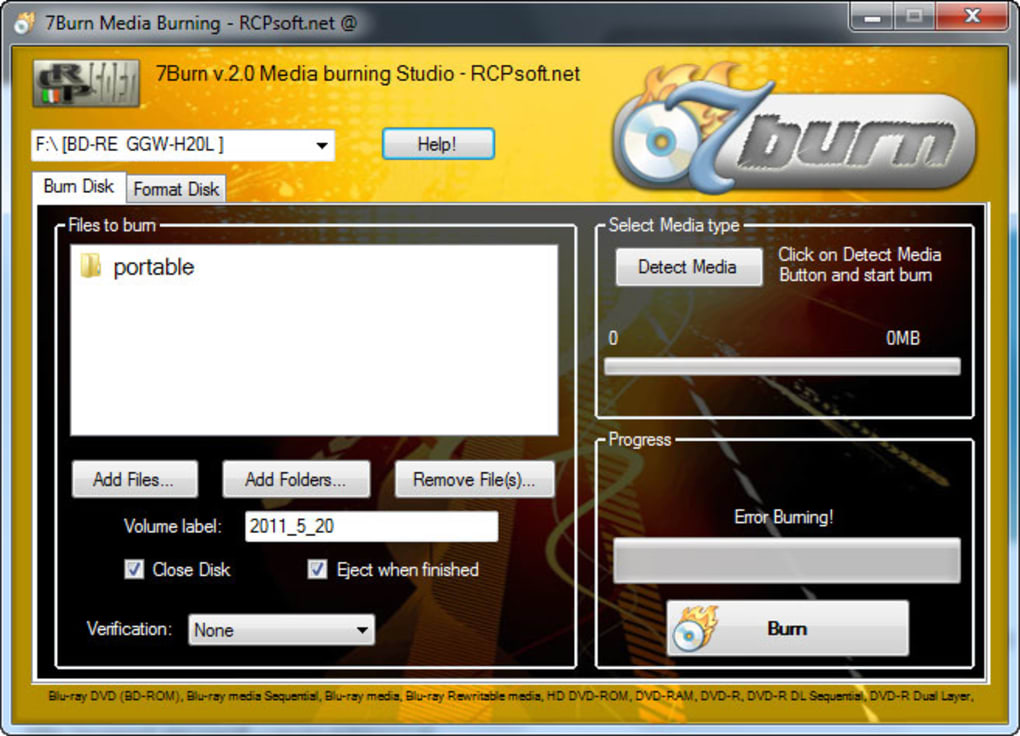
After launching 7Burn, the main window displays a large blank area labeled “Drag files here”. Simply drag the files or folders you wish to burn into this space, or use the “Add Files” button to browse your computer. Once the content appears, select the target drive from the drop‑down list (e.g., “DVD‑RW Drive (D:)”).
Choose the desired burn speed—lower speeds are recommended for archival-quality discs—and click the “Burn” button. The software will then write the data, display a progress bar, and finally perform an automatic verification step. If any errors are detected, 7Burn will notify you with a detailed report.
System Requirements and Operating System Support
7Burn is built for Windows platforms ranging from Windows Vista back to Windows XP. It works on both 32‑bit and 64‑bit architectures, though the installer automatically selects the appropriate binaries. Minimum system specifications include:
- CPU: 500 MHz processor or faster
- RAM: 256 MB (512 MB recommended for smoother operation)
- Hard‑Disk Space: 20 MB free for installation
- Optical Drive: Any CD/DVD burner with standard ATAPI/IDE/SATA interface
While the software is not officially supported on Windows 8, 10, or 11, many users have reported successful operation in compatibility mode. However, for the most reliable experience, it is advisable to run 7Burn on the supported operating systems listed above.
Pros, Cons, and Frequently Asked Questions
Pros
- Free of charge with no hidden fees or ads.
- Very low system resource consumption, ideal for older PCs.
- Supports a wide range of disc formats, including DVD‑R DL.
- Automatic data verification ensures disc integrity.
- Simple drag‑and‑drop UI reduces learning curve.
- Multi‑language support for English and Portuguese (Brazil).
Cons
- Last official update was in 2012, so no recent feature enhancements.
- Lacks advanced options such as video DVD authoring or disc labeling.
- No native support for Windows 8/10/11 without compatibility mode.
- Limited community support compared to larger commercial burners.
FAQ – Frequently Asked Questions
Is 7Burn compatible with Windows 10?
While 7Burn was officially designed for Windows Vista, Windows 7 and earlier, many users have reported that it runs in Windows 10 compatibility mode. To enable this, right‑click the executable, select “Properties”, go to the “Compatibility” tab, and choose “Windows 7”. However, for guaranteed stability, using a supported OS is recommended.
Can 7Burn create audio CDs for playback in standard CD players?
Yes, 7Burn includes a basic audio CD burning mode. Simply select the “Audio CD” option in the burn settings, add MP3 or WAV files, and the software will convert them to the CD‑DA format required for traditional CD players.
Does 7Burn support burning ISO images?
Absolutely. The “Burn ISO” function lets you select an existing .iso file and write it directly to a disc without additional conversion steps. This is useful for creating bootable media or distributing software packages.
Is there any risk of malware when downloading 7Burn?
When downloaded from the official website or reputable software repositories, 7Burn is safe and free of malware. Always verify the checksum (if provided) to ensure file integrity before installation.
Can I use 7Burn to burn data discs larger than 4.7 GB?
Yes, 7Burn supports dual‑layer DVD‑R (DVD‑R DL) media, which can hold up to 8.5 GB of data. Simply select the appropriate disc type in the burn settings, and the software will handle the larger capacity automatically.
The above FAQ addresses the most common concerns from potential users. If you have additional questions, the 7Burn community forum and the developer’s contact page are good places to seek further assistance.
Conclusion and Call to Action
In a market saturated with feature‑heavy, subscription‑based burning suites, 7Burn stands out by delivering exactly what many Windows users need: a fast, reliable, and completely free CD/DVD burning utility. Its minimalistic design, low system requirements, and essential feature set make it especially suitable for older machines, educational environments, and anyone who prefers a no‑frills approach to disc creation. While the lack of recent updates and advanced functionalities might deter power users, the core capabilities—drag‑and‑drop burning, ISO handling, speed control, and verification—remain solid and dependable.
If you’re looking for a secure, free tool to burn data, audio, or video discs without the overhead of modern bloatware, give 7Burn a try. Download the installer today, follow the simple setup steps, and start creating discs in minutes. For those on Windows Vista, Windows 7, or older platforms, 7Burn may well be the most practical solution available.
Ready to start burning? Click the download button below to obtain the latest 7Burn installer and experience a straightforward, ad‑free burning process on your Windows PC.







